
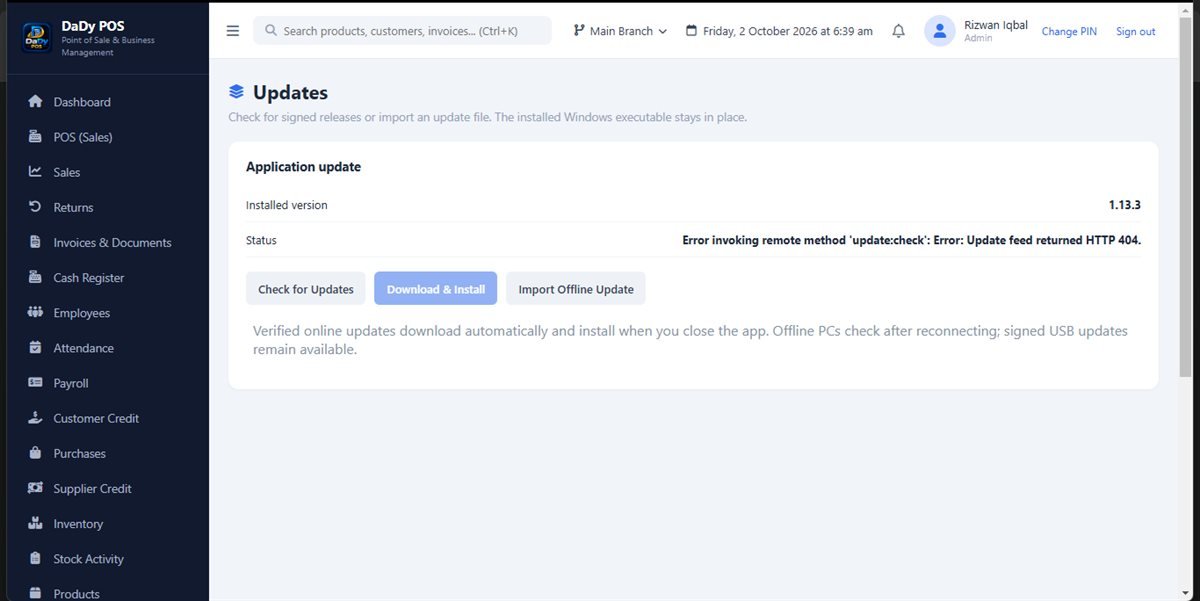
Treat an update as a planned shop task
The updates screen is one part of the DaDy POS interface. Before applying an update, ask what the screen represents in your installation and how an update is delivered. A screenshot alone does not confirm whether updates are automatic, how often they arrive, or what version is current. Plan the task for a quiet period when the counter can manage a short interruption, rather than starting during a queue or supplier delivery. Planning offline POS software updates around a verified backup helps reduce disruption to daily work.
Ask what will change before proceeding
Request a plain-language explanation of the update, including what changes, whether staff workflows are affected, and whether any preparation is needed. If the change alters the sales, inventory, purchase, or report screens, train the team before the next busy shift. Ask how to confirm that the update completed successfully and who to contact if something looks different.
Protect shop records before changing software
Before a software change, ask about the backup or recovery procedure recommended for your installation and confirm when the latest copy was made. Do not assume updates automatically preserve every record or that offline operation guarantees local data is safe. Ask the provider to explain where the records are stored and what steps are appropriate for your device.
Choose a quiet time and assign responsibility
Decide who is authorized to apply or approve an update and who will check the system afterward. Let employees know when the POS may be unavailable and what temporary process to follow. A small shop can schedule work outside its busiest trading hours, but the best time depends on local customer patterns. Make sure the person responsible has contact details for the provider if help is needed.
Make the team ready for interface changes
If a menu, label, or workflow changes, show staff what is different before they use it with customers. Focus on common tasks first: making a sale, handling a return, recording a purchase, and finding reports. Keep a short, current reminder where staff can find it without exposing passwords or customer information.
Keep track of timing and questions
A simple update note can record the date, person responsible, version or description shown, and any follow-up question. This helps if the shop later contacts support or needs to understand when a screen changed. Keep the note factual, brief, and in the shop’s normal record location. Do not include passwords or sensitive customer data.
Understand how support and recurring cost fit
Ask what help is available for updates, how support is contacted, and whether it is included in the monthly amount. The confirmed price is Rs 12,500 plus Rs 1,000 monthly, but the exact scope of the recurring fee should be confirmed directly. Do not assume that every update, installation visit, or troubleshooting task is included unless the provider explains it.
Related shop screens to prepare
Updates may affect how staff reach the tools they use each day. Revisit the dashboard, sales, inventory, and reports guides to identify the workflows the shop should verify after a change. If the update is part of initial setup, also look at products and employee records.
Do not interrupt a transaction in progress
Before an update, ask staff to finish or safely pause customer and supplier work according to the provider's instructions. Make sure no one is midway through recording a sale or delivery when the system changes. If the shop is too busy to pause, reschedule rather than risk losing track of an unfinished event.
Keep the update message and date
Save the provider's update instructions or release note in the business's normal record location and note when the change was applied. If staff later report a difference, the owner can connect the observation to a time and description. Do not store passwords in the same open note.
Recheck the ordinary workflow, not every screen
After an update, test the activities the shop depends on most, using the safe method the provider recommends. Confirm that staff can find products and review a recent record. Do not create genuine-looking transactions just to test the software if they could affect reports or stock.
Have a recovery contact and fallback plan
Before scheduling an update, make sure the person responsible knows how to reach the provider and what the shop should do if the application does not reopen as expected. Ask in advance whether the update can be delayed, what information support will need, and how recent records are protected. Agree a simple temporary way to record essential activity only if the provider or owner has approved it, then reconcile it carefully afterward. Do not improvise a parallel ledger that no one is responsible for closing. Write down who will make the recovery decision and when the shop should stop attempting fixes. This preparation matters for any system change, especially when the POS is central to counter work.