
Start with a question, not a number
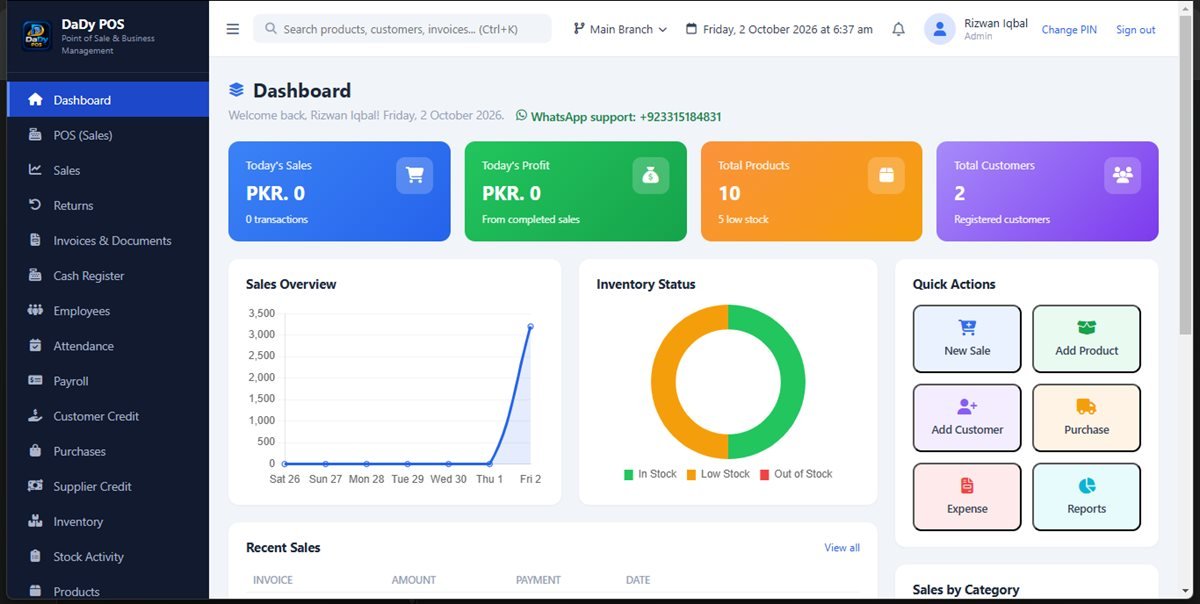
The dashboard is most useful when it answers a real shop question. At opening, you might want to know whether yesterday’s activity was recorded and whether stock needs attention before customers arrive. At closing, you might want to compare the day’s recorded sales with the invoices or receipts you handled. The screen groups several shop summaries and shortcuts, including today’s sales, today’s profit, product and customer totals, a sales overview, inventory status, quick actions, and recent sales. Treat these as signposts into the underlying records, not a substitute for checking a transaction when something looks unexpected. A number without its context can be misleading, especially after a return, a delayed entry, or a quiet trading day. A shop POS dashboard is most useful when its summaries lead you back to the underlying records.
Understand the summary cards
The colored cards present a compact overview: today’s sales, today’s profit, total products, and total customers. The screenshot shows sample values, not a promise about what any particular shop should see. Your own totals depend on the records entered into your copy of DaDy POS. For example, a product count tells you about the product list, not whether every physical item on the shelf has been counted today. A customer total indicates registered customer records; it does not tell you whether each record is current or whether an account balance has been settled.
Use the charts without over-reading them
The sales overview gives a visual way to spot the shape of recorded activity across the days shown. A line that rises or falls can prompt a good question: Was the shop busier, did an entry arrive late, or did a return alter the picture? The inventory status graphic separates stock into visible status categories. Neither chart explains its own causes. If a graph changes sharply, follow it back to the individual records and consider the period displayed before drawing conclusions. A chart can make a pattern easier to notice, but the transaction details explain what happened.
Choose a shortcut that matches the next task
Quick actions on the dashboard include paths to a new sale, adding a product, adding a customer, a purchase, an expense, and reports. Those shortcuts are useful when you already know what you need to do. They reduce hunting through the menu, but they do not decide which record is appropriate. Before you start, consider whether the activity is a sale, a return, a purchase from a supplier, an expense, or a stock correction. Similar-looking money movements can represent different events in a shop’s records, and choosing the right screen makes later review easier.
Make the dashboard part of a calm close
At closing, compare what the dashboard summarizes with the records you expect to have created during the day. Open recent sales to inspect any entry you cannot explain. Check inventory status if a fast-moving product may need attention, and use reports when you need a broader view than the main dashboard offers. Keep the routine proportionate: the screen is a starting point, not a demand to complete every possible check every evening. If a discrepancy remains, write down the date, product or transaction, and the question to resolve instead of guessing.
A practical fit check before buying
A dashboard is only one screen in a shop-management system. Before purchasing, ask to see the workflows that matter to your own shop: sales, returns, products and inventory, purchases, categories, customer and supplier credit, expenses, employees and payroll, and reports. The screenshot can show the layout, but it cannot establish every setup detail or answer how a particular shop should handle its records. Take a short list of your daily tasks to a demonstration and ask the provider to show where each one belongs.
Related screens to explore
The dashboard connects naturally to the work represented by other screens. For day-to-day counter activity, see the sales guide, then compare it with the transactions guide when you need to revisit recorded activity. For stock questions, continue to inventory and stock adjustments. If a summary raises a question about money owed, the customer credit and supplier credit guides give those balances their own context. Each page is about one visible area rather than a claim that one screen explains the whole business.
A note for shops with changing routines
A dashboard check should follow the way the shop actually operates. If the shop opens late on a market day, a morning glance may show little activity and still be completely normal. If a staff member enters a purchase after shelving goods, the stock picture may lag behind what is physically present until the record is complete. Agree on a cut-off point for the daily review, then compare the same kind of activity from one day to another. This gives the owner context without inventing an explanation from a graph.
Use the overview to decide what to check next
The screen combines several areas, which makes it easy to jump from one question to another. Resist treating every card as a task. If product status looks fine but a supplier bill is still unresolved, the next useful step may be supplier credit rather than another stock count. If customer activity is important today, open the relevant account instead of inferring details from a total. A focused review saves time and helps family members or employees understand why the owner opened a particular screen.
Keep a short list of recurring questions
Owners often ask the same practical questions: which items ran low, whether a return was entered, and whether all counter sales were completed. Keep those questions in a notebook or a private shop checklist and use the dashboard as a starting point for answering them. After a few weeks, remove checks that do not help and keep the ones that catch real problems. The goal is a small, sustainable habit that suits the business, not a complicated daily audit.