
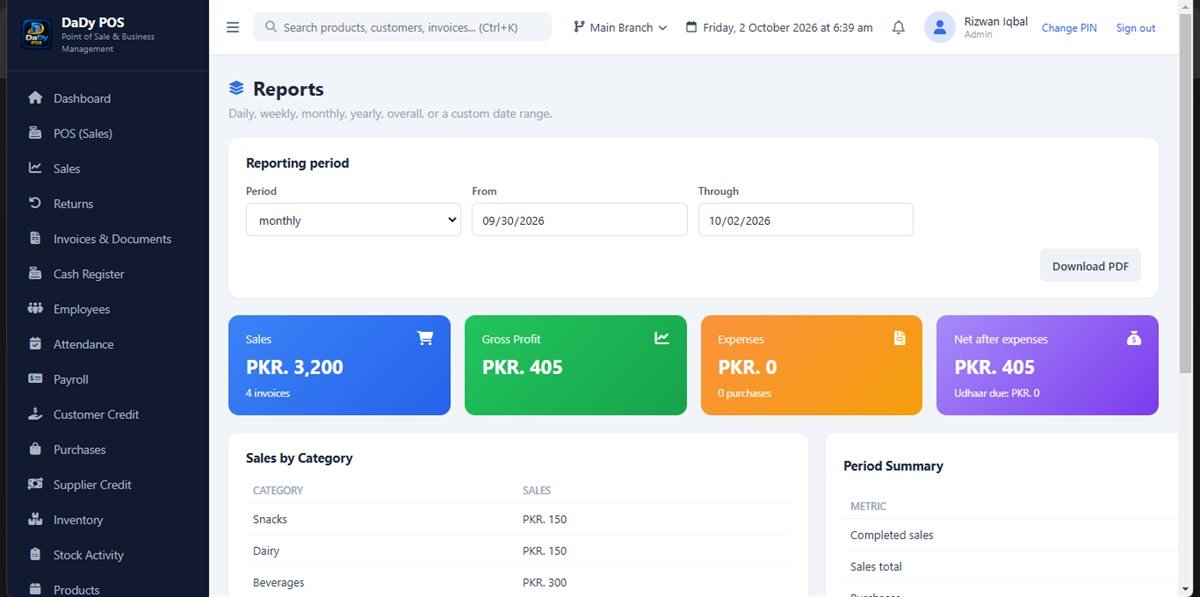
Choose the decision before opening a report
A report is most useful when the owner knows what they want to learn. Are you checking recorded sales over a period, reviewing products that need attention, or trying to understand whether entries are complete? The reports screen in DaDy POS provides a place to view shop summaries. Ask the provider what report types and filters are available in your installation; a screenshot does not confirm every report, field, or export option. Useful POS reports for small shops put recorded figures in context instead of claiming to explain their causes.
Check the dates and included records
A report is only meaningful if you understand the period it covers and what records are included. Confirm the start and end dates, transaction categories, and any filters before comparing totals. A return, late entry, or adjustment may change what you expect to see. If the displayed range uses a date format you find unclear, ask the provider rather than assuming which day it represents.
Follow a surprising total back to its source
If a report total looks unusual, identify the contributing transactions. Check for a return, duplicate sale, missing purchase, or stock adjustment that may explain the value. Confirm the correct product, customer, supplier, and period. A total that surprises you is a reason to investigate, not proof that the software is broken or that someone made a mistake.
Keep sales, profit and cash distinct
A sales total is not automatically the cash the owner can spend, and it is not the same as profit. Returns, customer credit, supplier amounts, expenses, purchases, and other business activity may matter to the overall picture. Do not interpret a report label beyond what the provider explains. The screenshot may show familiar summaries, but not the formulas, limits, or accounting treatment behind each figure.
Use product and stock views with care
A product or inventory report can help identify stock that needs a closer look. Confirm that product names, categories, purchase entries, returns, and adjustments are current. A low-stock indicator does not decide how much to order, and a product total does not prove an accurate shelf count. Check physical stock and upcoming needs before committing shop funds.
Turn a report into a practical shop action
Useful actions are usually modest and specific: recount one item, clarify a staff step, follow up a supplier invoice, or review a customer balance. Make a note of what you will check and who is responsible. Avoid sweeping changes based on one reporting period. If you want to compare performance, use consistent periods and consider the events that affected each one.
Protect report information and share carefully
Reports may include customer, supplier, employee, or financial details. Limit access to people with a business need and avoid sharing screenshots publicly or in an unrelated group. Ask what export or sharing options exist and how the data is handled. Offline POS software still requires sensible access control and device security.
Ask the provider to explain its reports
During a demonstration, ask to run a report for a specific period, change a filter, open a related transaction, and explain the meaning of every displayed total. Ask whether data remains on the local installation and how the shop should back it up. The stated price is Rs 12,500 plus Rs 1,000 monthly; confirm what the recurring amount covers.
Keep a small comparison journal
If reports inform planning, note the date range and any unusual event beside the figures you compare. A short note about a public holiday, temporary closure, or product shortage can prevent a later reader from treating unlike periods as equivalent. Keep observations separate from measured records so nobody mistakes context for a software result.
Agree who may share report information
A report may reveal customer balances, employee amounts, supplier obligations, or business activity. Decide who is permitted to print or send it and which recipients need which details. If an advisor requests records, confirm the request and use an appropriate channel. Do not post a full report in a general staff chat just because it is convenient.
Match the report to the decision
A stock question calls for inventory records; a staffing question may call for employee information; a supplier dispute needs invoices and payment details. Choosing a report because it is readily available does not make it the right evidence. Define the decision first and ask whether the POS data captures what the question requires.
Write down what a report cannot answer
A report may show recorded activity without explaining why a customer chose an item, whether an employee followed a process, or what a supplier promised. Note those unanswered questions separately and gather the evidence that can address them. For example, combine a stock summary with a physical count or a purchase entry with the supplier's delivery note. This avoids asking one screen to prove more than it records. If the business uses figures for a formal purpose, ask an appropriate advisor whether the report is sufficient and what additional documents are needed. A clear boundary around the data makes decisions more responsible.